
How to Diagnose and Fix Common iPhone Hardware Failures like Screens and Batteries
Updated: Aug 27
iPhones are reliable devices, but like any technology, they can face hardware problems. The most frequent issues include shattered screens, worn-out batteries, charging port troubles, and liquid damage. Many of these problems can be fixed with professional repairs, but some can be resolved at home with simple cleaning or software checks. Understanding how to identify and address these failures can save time, money, and frustration.
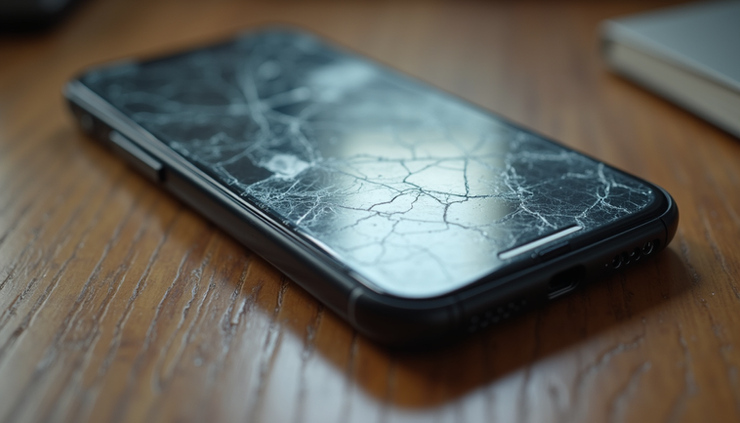
Identifying Screen Problems and Solutions
A shattered or unresponsive screen is the most obvious hardware failure. Cracks can happen from drops or pressure, and sometimes the touchscreen stops responding even without visible damage.
Signs of Screen Failure
Visible cracks or shattered glass
Touchscreen not responding or erratic behavior
Display flickering or showing lines
Black spots or discoloration on the screen
How to Fix Screen Issues
For minor cracks: Use a screen protector to prevent further damage until you can get a replacement.
Unresponsive touchscreen: Restart the iPhone or update iOS to rule out software glitches.
Professional repair: Replacing the screen is often the best solution. Apple and authorized repair shops offer screen replacements that restore full functionality.
DIY caution: Screen replacement requires special tools and skills. Attempting it without experience can cause more damage.
Battery Problems and How to Address Them
Battery degradation is common as iPhones age. You might notice shorter battery life, unexpected shutdowns, or slow charging.
Symptoms of Battery Failure
Battery drains quickly even with light use
iPhone shuts down suddenly at higher battery percentages
Device feels warm during charging or use
Charging takes longer than usual
Steps to Improve Battery Life
Check battery health: Go to Settings > Battery > Battery Health to see maximum capacity and peak performance capability.
Optimize settings: Lower screen brightness, turn off background app refresh, and use Low Power Mode.
Software updates: Keep iOS updated to benefit from battery management improvements.
Battery replacement: If health is below 80%, consider professional battery replacement. Apple offers this service with genuine parts.
Charging Port Failures and Cleaning Tips
Charging problems often stem from dirt, lint, or damage inside the charging port.
Signs of Charging Port Issues
Charger cable doesn’t fit snugly
Charging starts and stops intermittently
iPhone doesn’t charge at all
How to Fix Charging Port Problems
Inspect the port: Use a flashlight to look inside for debris.
Clean carefully: Use a toothpick or a small brush to gently remove lint or dust. Avoid using metal objects that can damage pins.
Try different cables and chargers: Sometimes the issue is with accessories, not the port.
Professional repair: If cleaning doesn’t help, the port may need replacement.
Dealing with Liquid Damage
Liquid exposure can cause serious hardware damage, but early action can reduce harm.
Signs of Liquid Damage
Screen flickering or unresponsive
Buttons not working properly
Strange sounds or overheating
Corrosion visible inside charging port or SIM tray
What to Do After Liquid Exposure
Turn off the iPhone immediately to prevent short circuits.
Remove SIM card and dry the device: Use a soft cloth and avoid shaking the phone.
Avoid charging or turning it on until fully dry.
Professional inspection: Liquid damage often requires specialized cleaning and repairs.

When to Seek Professional Help
Some hardware failures are straightforward to diagnose and fix, but others need expert attention. If your iPhone has extensive screen damage, battery swelling, or liquid exposure, professional repair is safer and more reliable. Certified technicians use genuine parts and proper tools to restore your device without risking further damage.
Final Thoughts on Maintaining Your iPhone’s Hardware
Regular care can prevent many common hardware issues. Use a sturdy case and screen protector, avoid exposing your iPhone to moisture, and clean ports gently. Monitor battery health and update software to keep your device running smoothly. When problems arise, start with simple troubleshooting before moving to professional repairs.



Comments